Chapter 3 · The Day
Why most pages in Awaken Journal don't scroll (and the Day View does)
The short answer: the To-Do pages in Awaken Journal are built to fit on one screen, so the page itself never moves. Where a list can grow, like your week's tasks, only that list scrolls, inside its own box, while everything around it stays where it is. The Day View, Notes and Settings do scroll, because they hold your writing and long lists of options. This post explains which pages stay still, what moves instead, and why it's built that way.
The 30-second version: an endless feed gets snipped into one page, the list moves like the view from a train window, and the Day View scrolls to give your writing room.
The last post was about why the app opens on today. This one is about what the page does when you try to scroll it.

1 · Which pages don't scroll
Open To-Do from the sidebar. The whole page fits on your screen: your productivity for the week and the cards that take you to the rest of To-Do. Swipe up and nothing moves. That's not a bug. It's the no-scroll principle, and it's one of the few design rules in Awaken Journal that never changes.
The same rule holds on the other To-Do pages:
- Weekly Task Manager: your week's frog, goals and urgent tasks.
- Uncommitted: tasks you haven't given a week yet.
- Brain Dump: everything you've emptied out of your head.
- Roles & Areas: the parts of your life your tasks belong to.
2 · What moves instead: the list, not the page
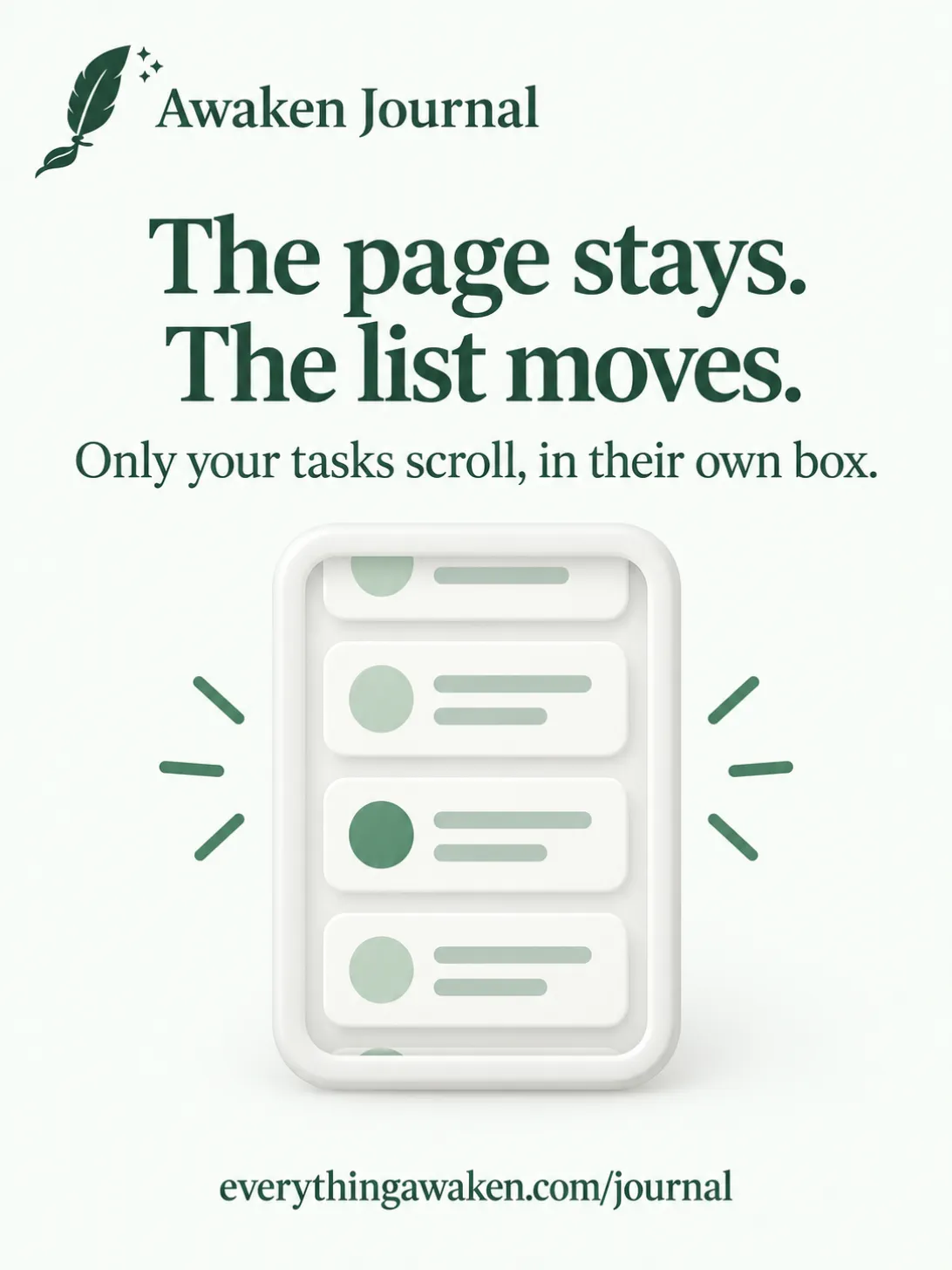
Some of those pages hold lists that can grow, like a busy week. On those, the page still stays put, and only the list scrolls, inside its own box. The top bar, the page title and the button to add something stay exactly where they were.
So you always know where you are. You can scroll through forty tasks and the page around them never slides away.
3 · Why it's built this way
A page that fits on one screen can't quietly turn into an endless feed. That's the real reason, not a matter of taste.
When a page can grow forever, every new feature gets tacked onto the bottom, and the page slowly becomes something you scroll through instead of something you look at. With a fixed screen, every card has to earn its place. If something doesn't fit, it either gets simpler or it goes somewhere else.
For your tasks, that means the shape of your week is something you can take in at a glance, not something you dig for.

4 · Which pages do scroll, and why
Not everything fits a fixed screen, and the app doesn't pretend it does:
- The Day View scrolls. It holds your Journal, To-Do and Finance for the day, and your writing takes the room it needs.
- Notes scroll, because a note can be as long as you want.
- Settings scroll, because there are more options than one screen holds.
- The Guide inside the app: its first pages fit one screen, but a chapter scrolls, because a chapter is something you read from top to bottom.
The rule is about working pages, where you plan and check. Pages for writing and reading scroll like you'd expect.
Check it yourself
- Open the sidebar and tap To-Do. Swipe up: the page stays where it is.
- Open the Weekly Task Manager. Scroll your tasks: the top bar doesn't move, only the list does.
- Go back to today's page and scroll: the Day View moves, because that's where you write.
Quick answers
Why can't I scroll the To-Do page?
Because every To-Do page is built to fit on one screen. Nothing is hidden below the bottom edge, so there's nothing to scroll to.
My week has lots of tasks. Where do they go?
Into the list on the Weekly Task Manager. That list scrolls inside its own box, while the rest of the page stays put.
Why does the Day View scroll if the rule is no scrolling?
The rule is for the To-Do pages, where you plan and check. The Day View is where you write, and writing takes the room it needs.
Is it the same on Android and iPhone?
That's the plan. The no-scroll rule for To-Do pages is one of the design laws the Android and iPhone apps carry over from the web app.
Where to go next
The rest of Chapter 3 is about finding your way around: the sidebar, the buttons up top, turning modules on and off, and why it looks the way it does.